Creating A Membership
In the Customer Dashboard area of the App Manager you are able to create Memberships that your app customers are able to join directly through the app.
Where Do You Find Memberships?
From the main Quick Start screen click on Customer Dashboard
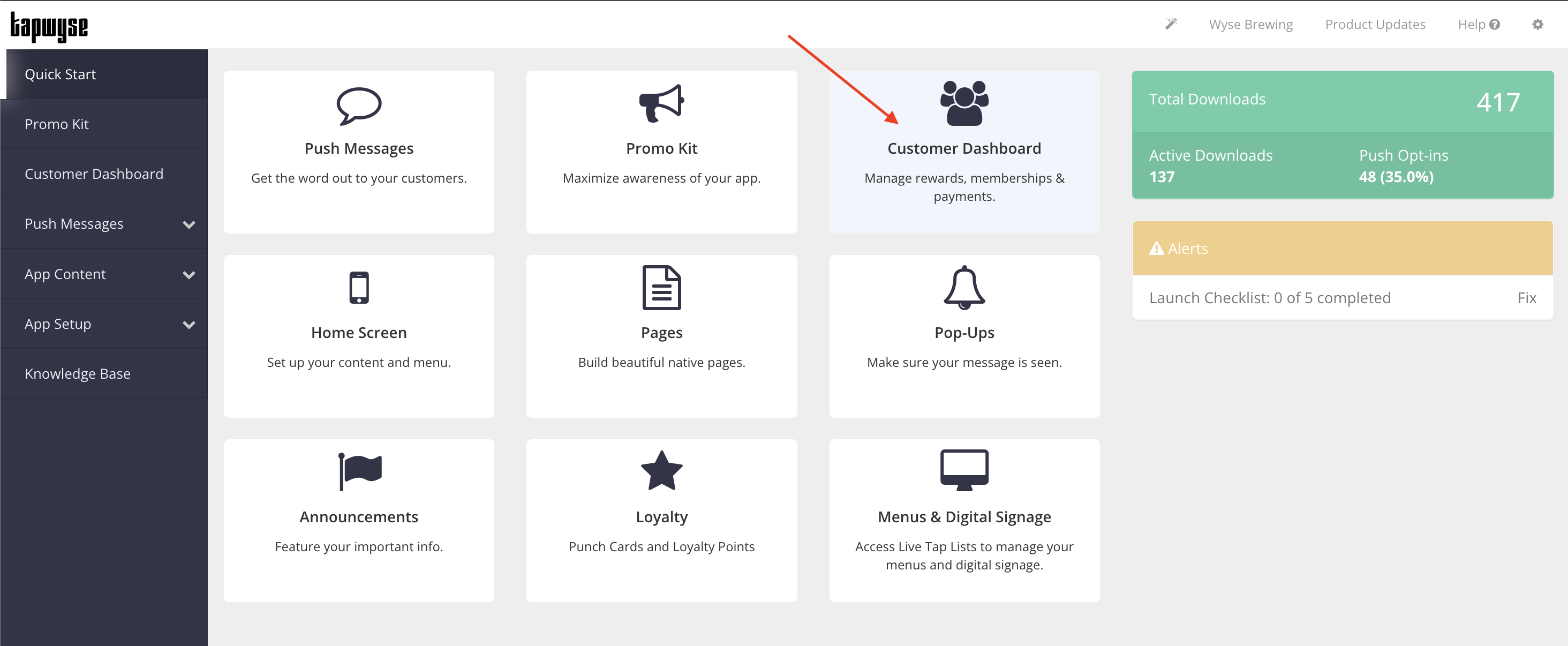

When you click Customer Dashboard it will open a new tab in your browser. You will now be able to toggle between your main Quick Start tab and your Customer Dashboard tab in your browser.
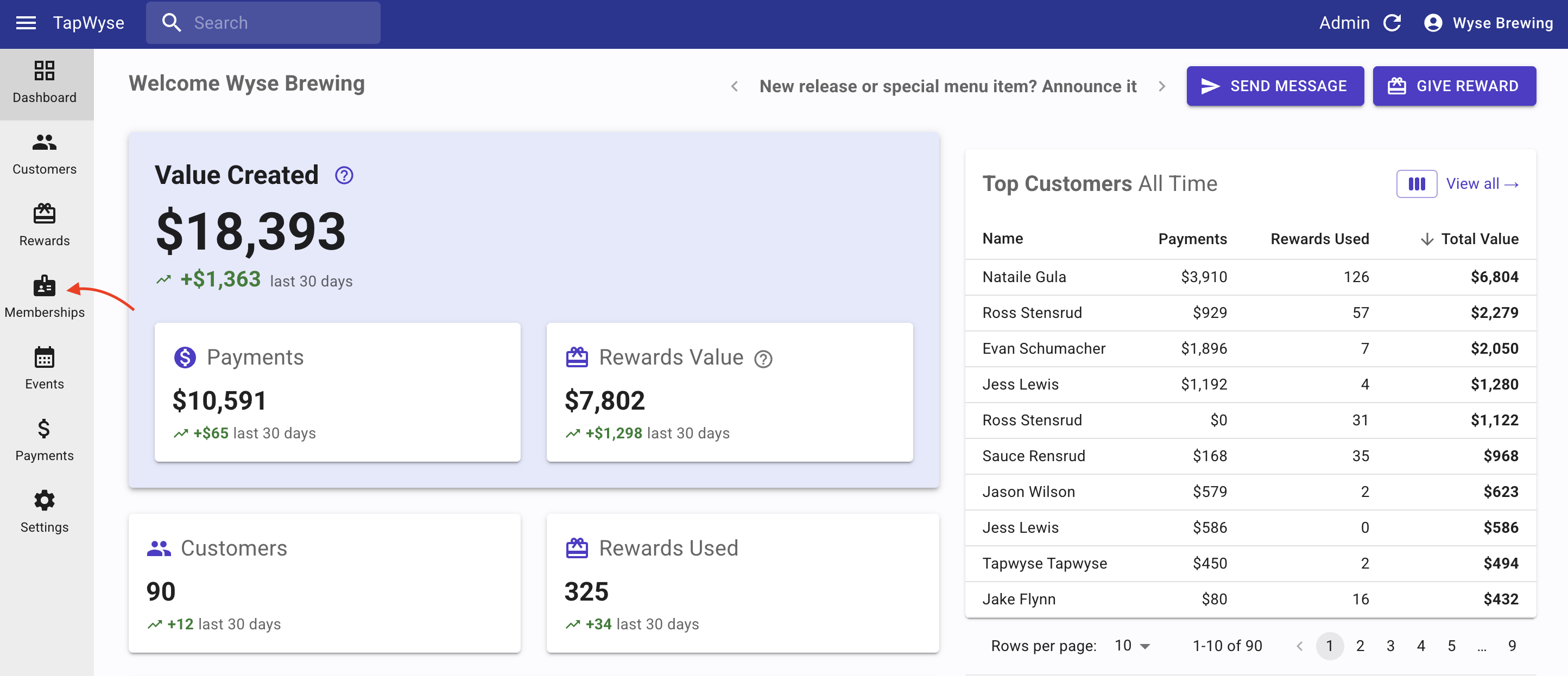
In your Customer Dashboard tab, click on Memberships (left-hand navigation bar)
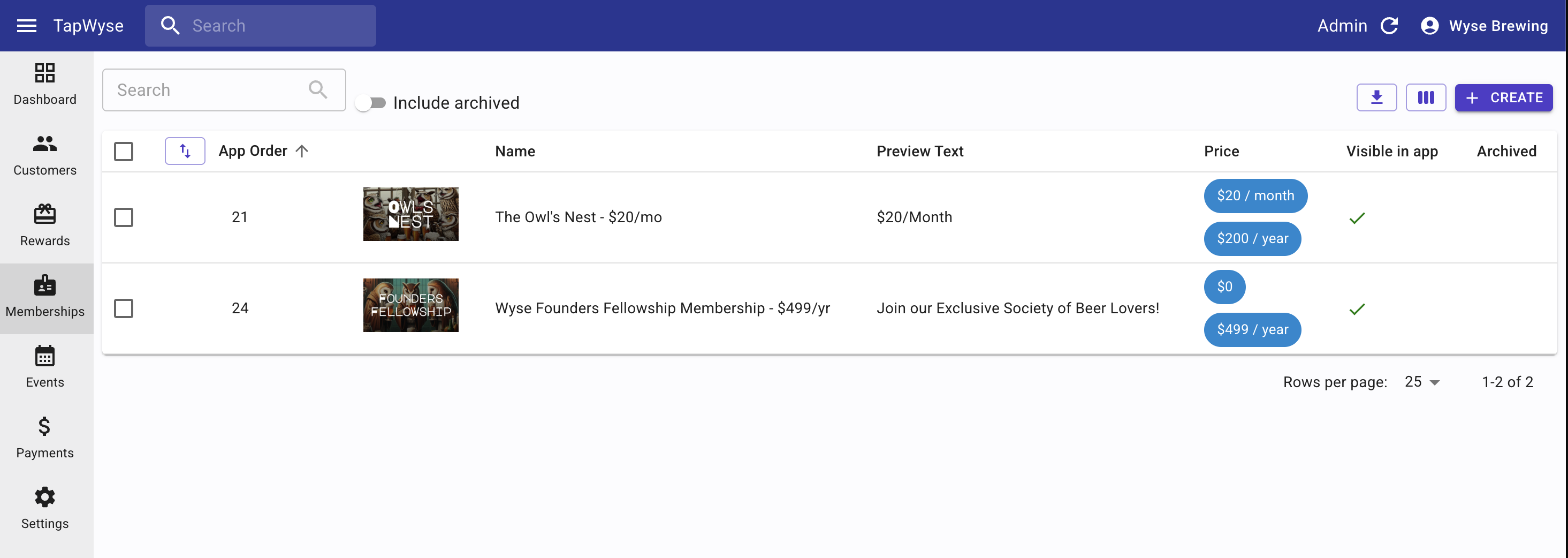
Once you open the Memberships section of the Customer Dashboard you can create new memberships and edit existing memberships.
This article will focus on creating a new membership.
This article will focus on creating a new membership.
Creating a New Membership
- Click Create in the upper right-hand corner of the screen. This will open the Create Membership section where you will add all the membership content and image.
- Add the Membership Name (ex. The Owl's Nest) to the 'Name' field and add an Image (1920 x 1080 px).
- Add the Preview Text (optional) - most people will use this field to display the amount of the membership (ex. $20/month)
- Add the Description - this is where you enter the details of the membership
- Add any "fine print" details to the Legal field (optional) - this is where people will add details such as "Must be 21 to purchase alcohol" or "Cannot be combined with any other offer), etc.
- Once the Name, Image, Preview Text, Description, and Legal are added, click Save at the bottom of the screen
Below is a preview of what the above fields look like in the app:
When you click on the Membership(s) button to open the Memberships page that will show all of your available memberships
⬇️
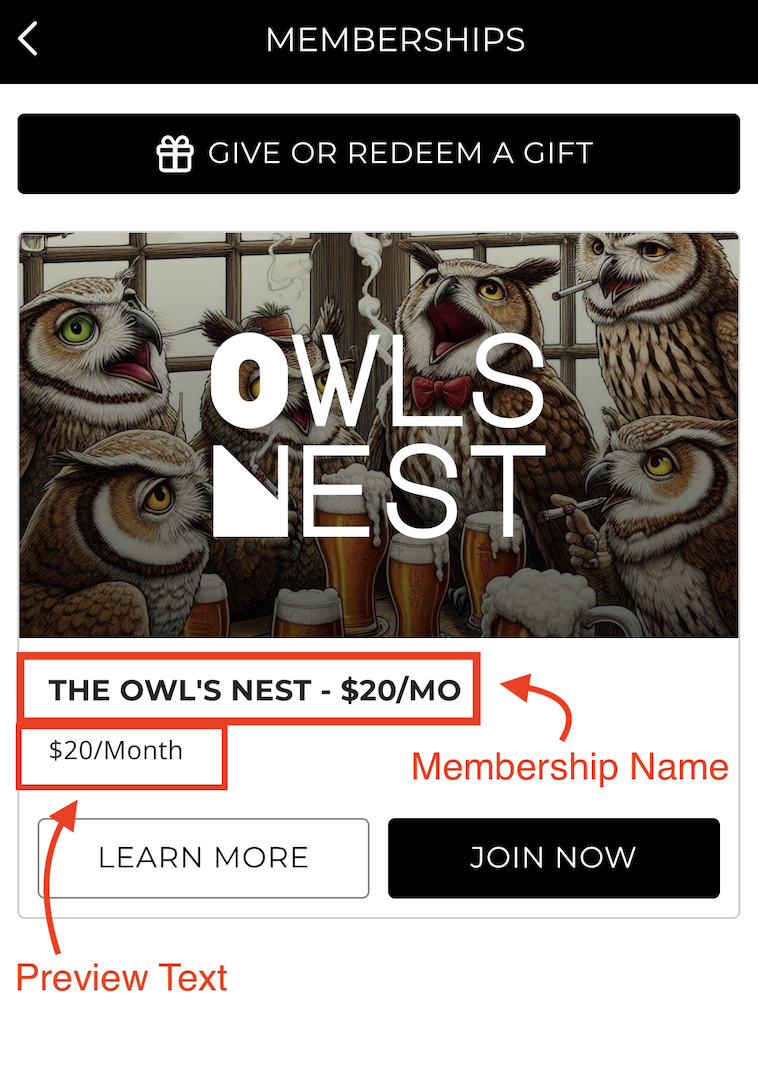
When you click on 'Learn More' to open the details of the membership in the app
⬇️
When you click on the Membership(s) button to open the Memberships page that will show all of your available memberships
⬇️
When you click on 'Learn More' to open the details of the membership in the app
⬇️
Adding Pricing for the Membership
- In the existing membership, click on the Pricing tab
- Click Add Price
- Choose the Type of Pricing in the Type dropdown field
- Recurring = the price you set will recur automatically for the time period you set (ex. monthly, yearly, etc.) until the member cancels their membership in the app
- One-Time = the price you set will only be charged one-time upon your guest signing up for the membership
Examples:
Recurring memberships are memberships where a guest can sign up at any point throughout the year and their payment will automatically recur on the cadence you set (monthly, yearly, etc.).
One-Time memberships are memberships where a guest may have a limited sign up window and the membership is only for a certain designated amount of time (ex. an annual Mug Club where sign up is in January and the membership ends December 31st). - The Currency dropdown will default to usd (US Dollar). There is no need to change this unless you are outside the US.
- Enter the price of the membership in the Amount field.
- Set the cadence by which your guest will be charged for the membership
- For Recurring memberships you'll set the duration to how often the payment should recur (ex. "every 1 Months" if your membership is a monthly membership, "every 1 Years" if your membership is a recurring annual membership)
- For a One-Time membership you'll choose the duration after which the membership should expire in the Membership expires dropdown
(1) Never = the membership will never expire (ex. Lifetime Membership)
(2) Time period = the membership will expire after a certain time period (ex. 3 months, 1 year, etc.) that you enter once you choose time period as your option
(3) Date = the membership will expire on the date you enter in the date field that populates once you choose date as your option
- Once you have the information added to the Add Price section, click Save
Adding the Redeemable Rewards Associated with the Membership
You are able to add Rewards to each of your Memberships that will then be delivered automatically on the cadence you set the reward to (ex. weekly, monthly, yearly).
The reward(s) must first be created in the Rewards section of the Customer Dashboard. If you need guidance on creating a reward, see How to Create a Reward for help.
Once a Reward is created you can then add it to your membership:
- In your Membership, click on the Rewards tab
- Click Add Reward
- Choose the Reward you are adding to the membership from the Reward dropdown
- Once you choose the Reward, a Quantity field will appear. It will default to '1' meaning each person will get one of the reward chosen when it's delivered. You can always update that quantity if need be.
- Choose how frequently members will have this reward delivered to them by choosing the Interval under the When to add section
- There are 6 different intervals you can choose from:
(1) One-time on date joined = the reward will be delivered when your guest signs up for the membership and you can choose how long that reward is good for (ex. 30 days, 1 year, a specific date, etc.)
(2) Daily = the reward will be delivered starting from the date they join every number of days you choose (ex. every day, every 3 days, every 5 days, etc.)
(3) Weekly = the reward will be delivered either every week from the date they join OR weekly on the day of the week you choose
OR
(4) Monthly = the reward will be delivered on a monthly basis either from the date they join OR on the day of the month you choose (ex. 1st, 15th, etc.)
OR
(5) Quarterly = the reward will be delivered every 3 months from the date they join OR on the day of each quarter that you choose (ex. 1st day of the quarter)
OR
(6) Yearly = the reward will be delivered once a year from the date they join OR from a day of the year you designate (ex. January 1st)
OR - After you choose the Reward and the Interval, click Save
Your Membership Customers List
Each membership will have it's own list of Customers. These are the customers in the app who have specifically joined the membership you are viewing.
Within the Customers list, in the membership, you can do the following, with the list of things not limited to just these functions:
- Send a Push Message - targeted to just the Customers in the membership
- Send a Reward - targeted to just the Customers in the membership
- Filter the list in order to be able to see specifics of your Customers list (ex. Active members, Expired members, The date a member joined, etc.)
Gifting Memberships
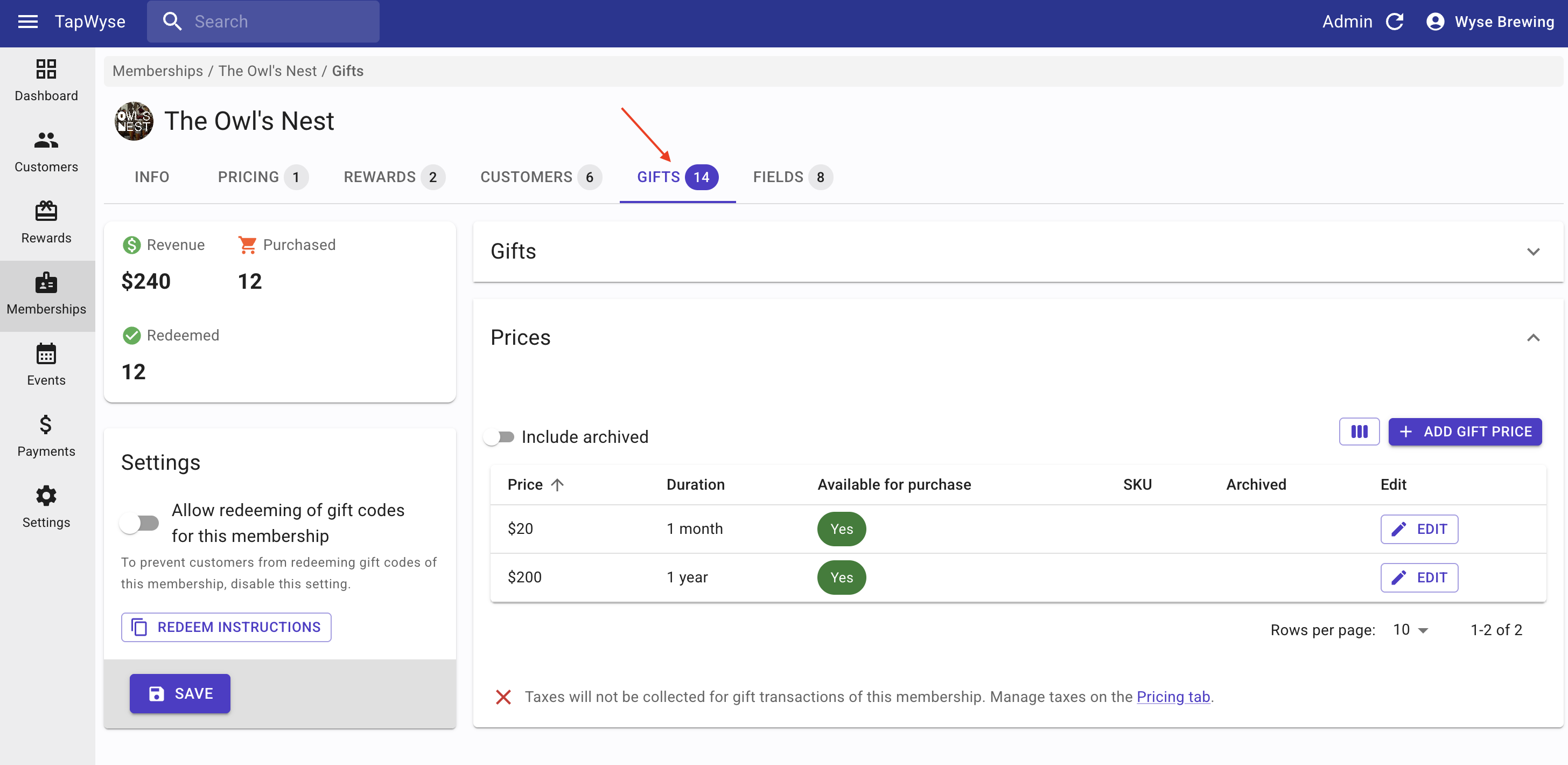
You have the option to allow your app customers to Gift a membership to another person if you set up Gifting in a membership. Gifting is specific to each membership. You can take a look at this quick video to see what Gifting looks like to set up and in the app itself.
Membership Fields
If there is additional information you would like to collect from your members when they are joining a membership you can add custom membership fields to each membership (ex. T-Shirt Size). You can use this article to help you set up the custom membership fields.