Announcements (aka News)

Announcements (aka News)

What is an Announcement?

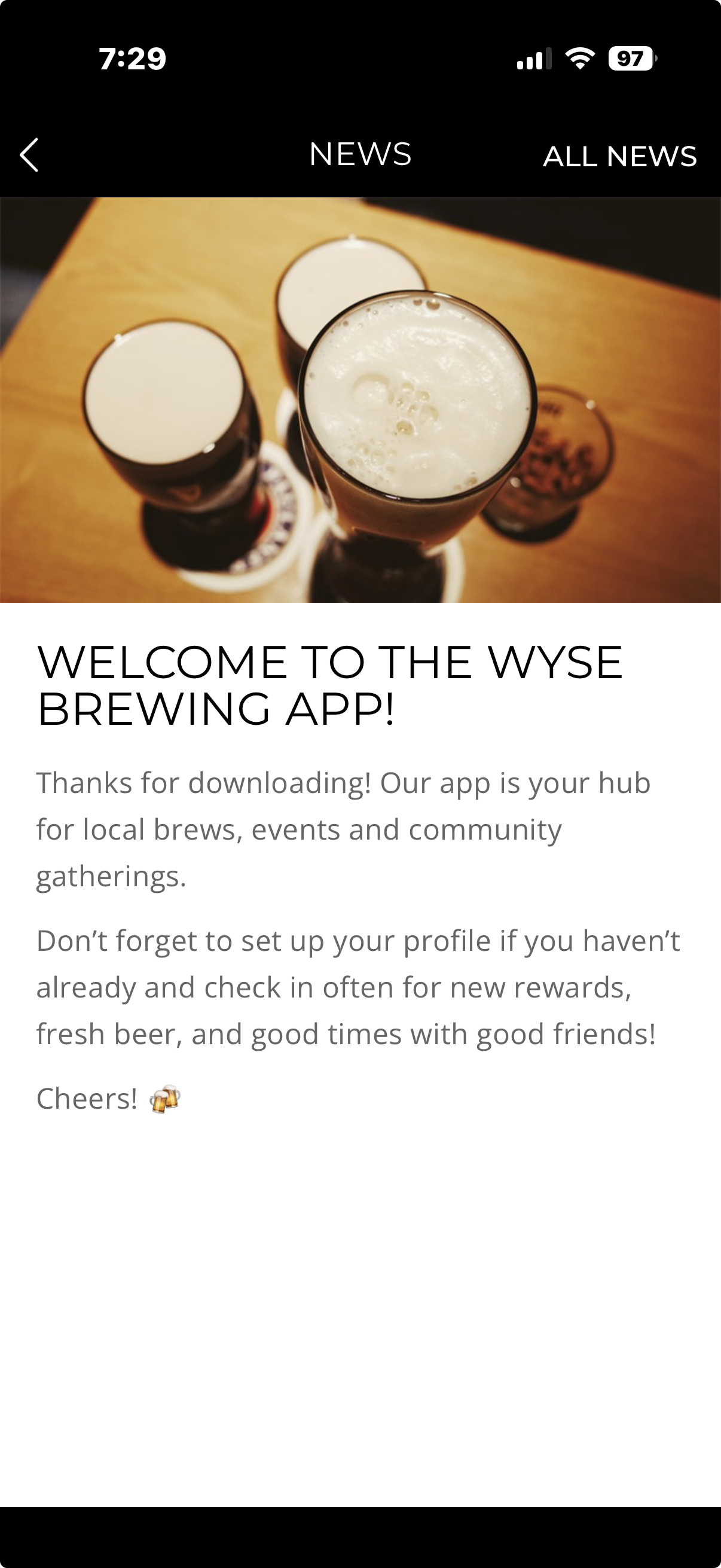
Announcements (aka News) provide a way to call out important information you need to relay to app users. Announcements appear as a banner at the top of your Home Screen buttons and will be featured under the News button that you can add to your Home Screen and/or Side Menu.

What Does an Announcement Look Like in the App?
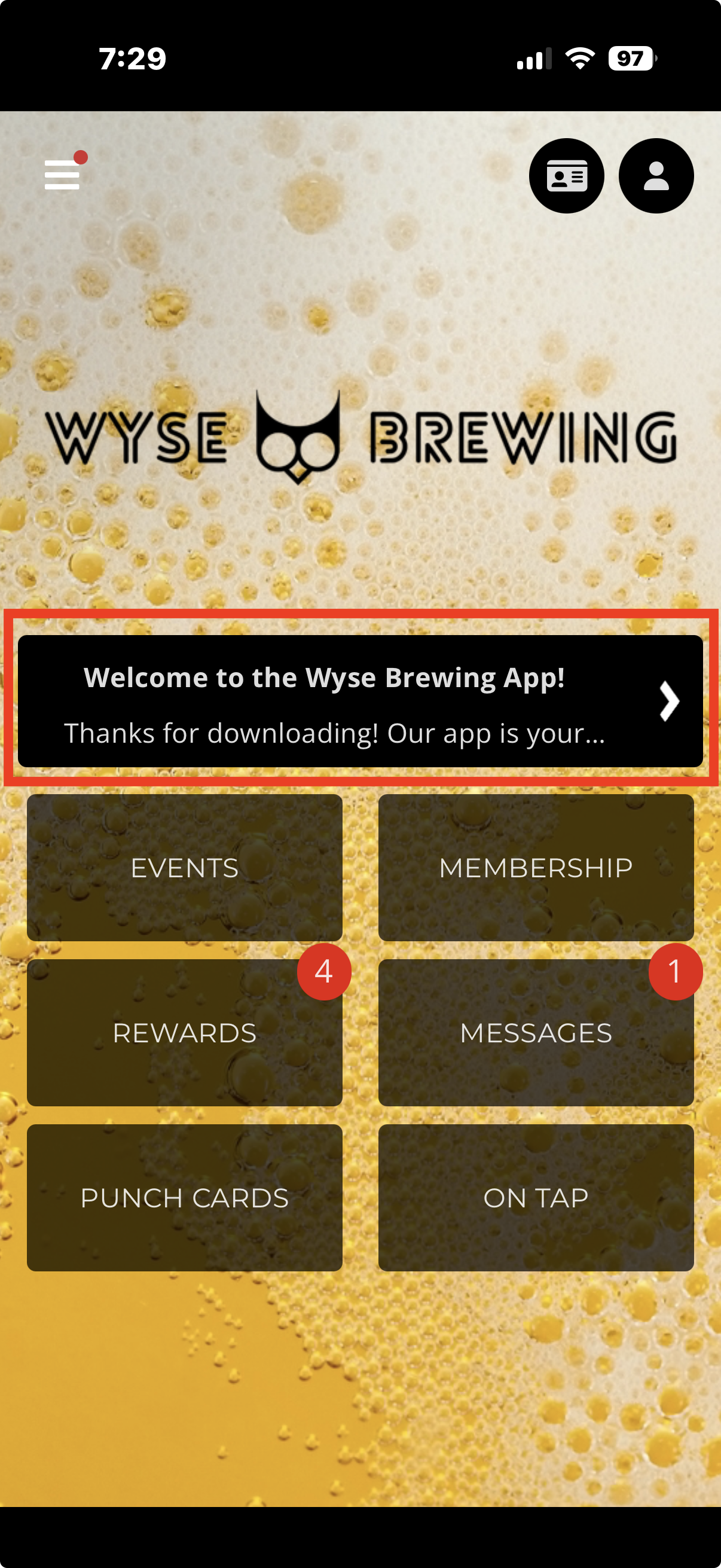
    

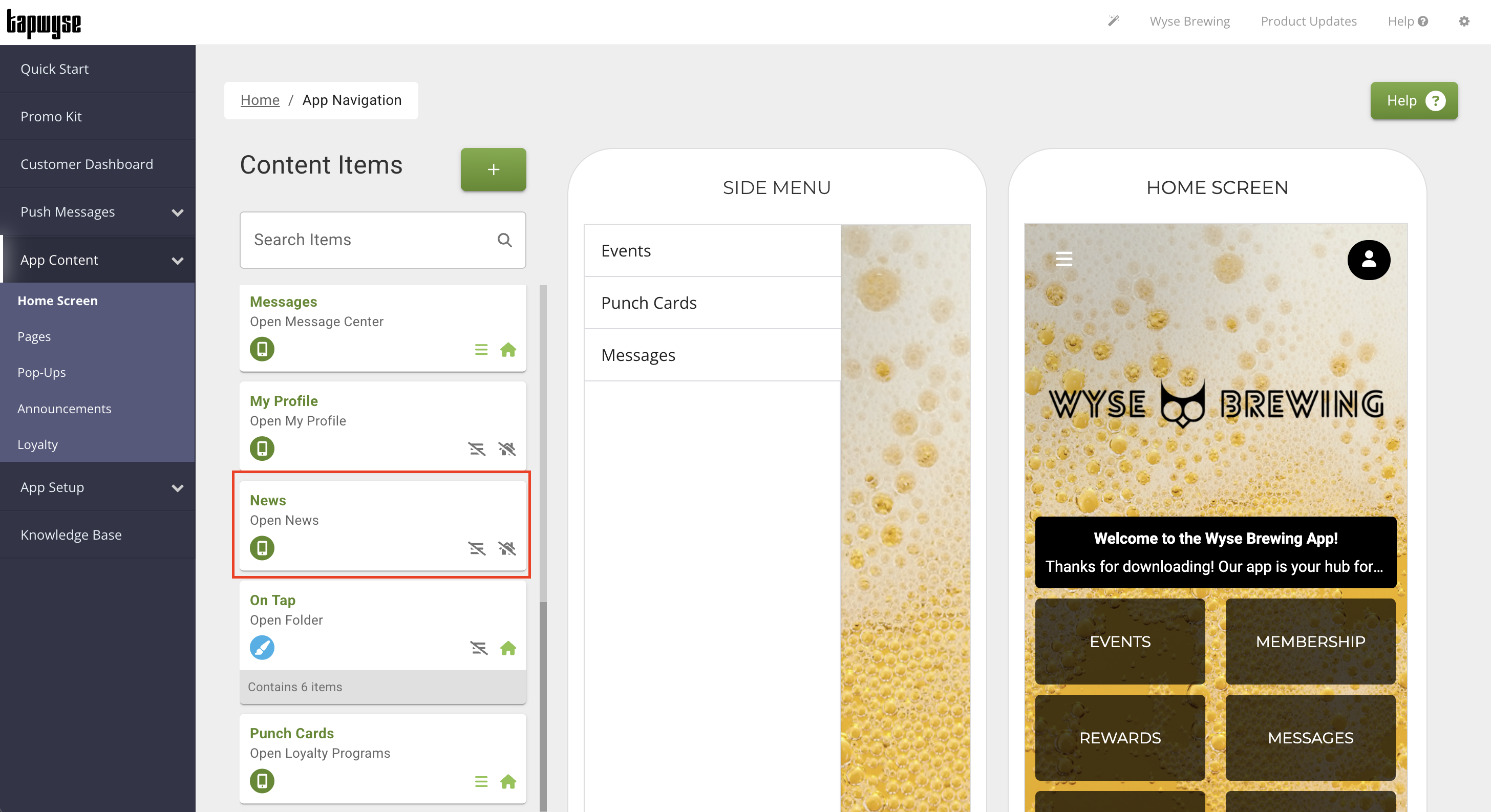
​Where Can an Announcement (aka News) be accessed in the app?

When creating an Announcement you have the option to "feature" it as a banner at the top of your Home Screen buttons. If you choose not to "feature" it the Announcement will live under the News button. You can add the News button to your Home Screen or Side Menu. The News button lives under the Content Items list in the Home Screen section of your App Manager. 
Creating An Announcement

  1. Click Announcements on the Quick Start screen in the App Manager

  2. Click Create

  3. Add the following information on the Edit News Item screen
    1. Select Image - Upload an Image by clicking Upload Image
      1. Image dimensions are 16:9 ratio or 1500 x 844 px. Acceptable formats are jpg and png.
    2. Title - Add the Title of your Announcement (ex. Welcome to the Wyse Brewing App or Sucker Punch Sour has been Unleashed!)
    3. Body - Add the content of your Announcement including text, images, & emoji's
    4. Date Range - Add the Active On date and the Expires On date
      1. If you do not want the Announcement to expire leave the Expires On field empty
    5. Feature - having this toggle ON (green) shows the Announcement as a banner at the top of your Home Screen buttons. Turning the toggle OFF (grey) will house the Announcement under the News button.

  4. Once you have filled in the Edit New Item screen, click Save.


    • Related Articles

    • Updating/Modifying your Home Screen and Side Menu

      This article will provide detail on how to update/modify the Home Screen and Side Menu of your app. Editing Your Home Screen & Side Menu How To Create a Button From the Quick Start page of your App Manager, click Home Screen Click the Green (+) at ...
    • How the Message Center Button (aka Messages, Alerts, Notifications) Works in the App

      Before You Begin Make sure to have an adequate understanding of Push Messages by viewing our How Push Messages Work article. What's The Point When a Push Message is sent, users receive it on the lock screen of their device. When they tap on it, they ...
    • Sending A Push Message

      This article will provide information on how to Send Push Messages as well as background information on Push Messages themselves. Background on Push Messages Push Messages appear on a device's lock screen for guests that have downloaded your app and ...
    • Accepting Updates To The Apple Developer Program License Agreement

      What's The Point? Apple updates their license agreements about once per quarter, which requires the developer account contact to accept the new terms of service through their online dashboard. (An automated email from Apple will be sent to the ...
    • Renewing An Apple Developer Account

      What's The Point? Apple requires that you renew your account every year and pay their Annual fee ($99/year US and $119/year CAD). Only the "Account Holder" can renew the account. If you have auto-pay enabled, you will not need to do this unless the ...